Saturday, August 8, 2026

Unlock Your Phone's Hidden Superpower: How to Master the Google Gemini Mobile App on Android and iOS (2026 Complete Masterclass)

Unlock Your Phone's Hidden Superpower: How to Master the Google Gemini Mobile App on Android and iOS (2026 Complete Masterclass)

Have you ever looked at the smartphone sitting in the palm of your hand—a device packing more computing power than the systems that sent humanity to the moon—and realized you are mostly just using it for scrolling social media, answering texts, and checking the weather? What if your mobile device could instantly act as a 24/7 personal strategist, an instantaneous document analyzer, a real-time voice sparring partner, and an automated life coordinator? For years, accessing artificial intelligence meant sitting down at a desktop computer, opening a browser tab, and typing away. Today, that barrier is completely shattered. Google Gemini’s dedicated mobile applications for Android and iOS bring frontier-level intelligence directly to your pocket, changing how you interact with technology forever.

Unlock Your Phone's Hidden Superpower: How to Master the Google Gemini Mobile App on Android and iOS (2026 Complete Masterclass)

Leveraging native mobile AI integration to unlock absolute productivity on Android and iOS platforms.

Welcome back to AI Automation Guru. I am Dnyandev Tukaram Jamdade, and today we are pulling back the curtain on how to completely master the Google Gemini mobile app across both major mobile ecosystems. In our previous deep dives, we explored the best configuration settings every new user needs, reviewed how to upload images and analyze PDFs effectively, and looked at how to secure free trials of Gemini Advanced. But mastering a tool on your desktop browser is completely different from wielding it on the go. Let us dive deep into the exact steps, configurations, and mobile workflows that will turn your smartphone into an elite productivity engine.

Section 1: The Android Powerhouse — Setting Up Assistant Replacement, Power-Button Triggers, and Screen Context

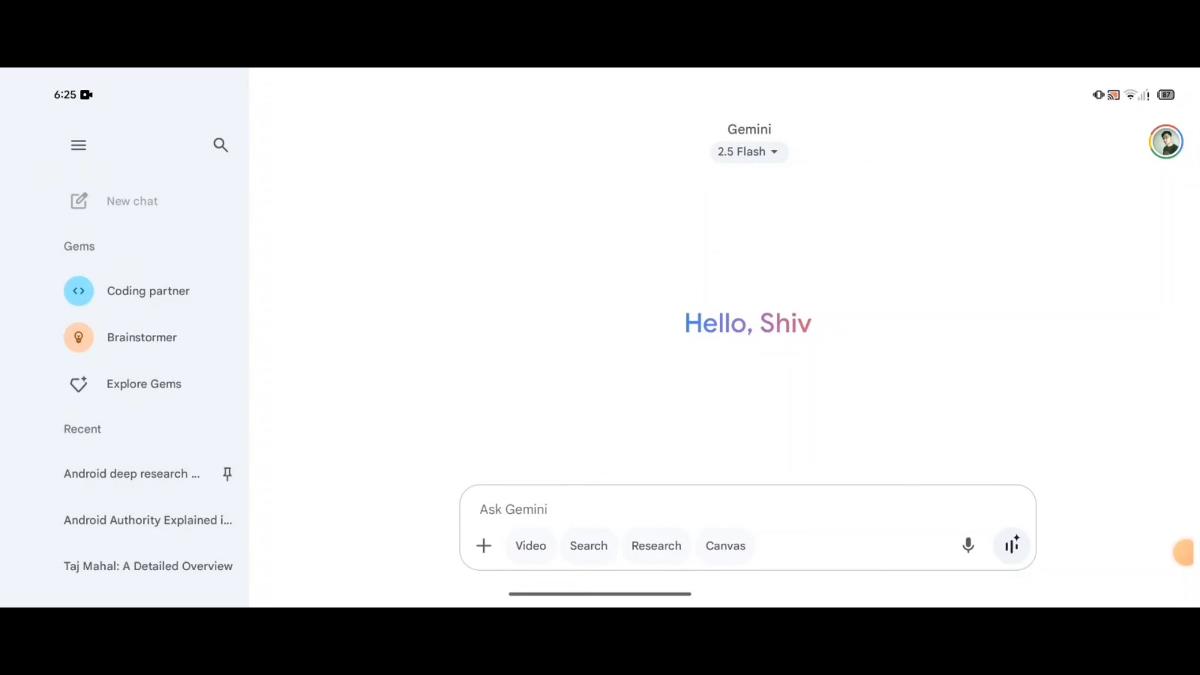
If you are an Android user, Google Gemini is not just a standalone app you occasionally tap open; it can become the native core brain of your entire operating system. By replacing legacy voice assistants, Gemini integrates directly into the hardware shortcuts of your phone. To understand how modern mobile architecture facilitates this deep system-level integration, you can explore the Wikipedia overview of the Android operating system to see how application layers and digital assistant intents interact at the hardware level.

Setting up Gemini as your primary mobile assistant on Android unlocks incredible speed and contextual awareness. Here is how to configure your device for maximum efficiency:

  • Step 1: Download and Switch: Install the Gemini app from the Google Play Store. Upon launching it for the first time, follow the on-screen prompts to opt in, which replaces Google Assistant as your default digital assistant app.
  • Step 2: Master Hardware Triggers: Instead of fumbling through your app drawer, invoke Gemini instantly by long-pressing your phone's power button, saying "Hey Google", or swiping up from the bottom corner of your screen.
  • Step 3: Enable Screen Context: Go into your Gemini app settings and ensure "Screen Context" (using text and screenshots from your active screen) is toggled on. This allows you to pull up any article, social media post, or YouTube video and tap "Ask about screen" to extract instant insights without manual copying.

This level of integration turns your phone into an active collaborator. Whether you are reading a complex financial report in your mobile browser or looking at a restaurant menu in a foreign language, Gemini is ready to assist instantly. Once you master the Android ecosystem advantages, we can examine how the iOS experience brings equivalent power to Apple users.

Section 2: The iOS Experience — Navigating the Google App Interface and Multimodal Prompts on iPhone

While Apple users have deep integration with native tools, bringing Google Gemini onto an iPhone or iPad unlocks an entirely different tier of cross-platform reasoning and creative execution. Housed neatly inside the Google app or accessible via dedicated shortcuts, Gemini on iOS gives Apple users a powerful alternative for drafting text, brainstorming, and analyzing visual media on the go. To see how Apple's sandboxed environment interacts with cloud-based artificial intelligence models, you can look at the Wikipedia technical description of iOS architecture.

Getting started on an iPhone requires a slightly different approach since Apple's native Siri retains hardware-level system control. However, the Gemini app excels as your dedicated intelligence hub. Here is how to make the most of Gemini on iOS:

Unlock Your Phone's Hidden Superpower: How to Master the Google Gemini Mobile App on Android and iOS (2026 Complete Masterclass)

Maximizing multimodal prompts, image generation, and document queries directly from your iPhone or iPad.

To use Gemini on iOS effectively, open the dedicated Gemini app (or switch to the Gemini tab inside the Google app), ensure you are signed into your primary Google account, and utilize the core interaction modes:

  • Seamless Keyboard and Voice Entry: Tap the keyboard icon to type complex prompts, or tap the microphone icon to dictate thoughts on the fly. The speech-to-text engine easily handles conversational speed and complex vocabulary.
  • Instant Photo and File Uploads: Tap the plus icon in the prompt bar to pull photos straight from your iOS photo library, snap a picture of a whiteboard with your camera, or upload PDFs from your iCloud files for instant mobile breakdown.

By utilizing the iOS app for quick research, draft creation, and visual analysis, you bridge the gap between desktop productivity and mobile convenience. This brings us directly to the most transformative mobile feature available across both platforms: real-time voice interaction.

Section 3: Advanced Mobile Workflows — Gemini Live, Voice Sparring, and Workspace Integration

The true magic of the Gemini mobile app on both Android and iOS is not just reading text on a small screen—it is Gemini Live. Traditional voice assistants feel robotic because they require rigid, single-turn query-and-response structures. Gemini Live transforms your mobile phone into an interactive, free-flowing conversational partner that allows you to brainstorm, interrupt, change topics mid-sentence, and talk through complex problems naturally.

Whether you are walking your dog during your morning commute or sitting in your car preparing for a high-stakes business negotiation, you can tap the Live icon (represented by a star floating next to audio bars) to start a continuous voice session. You can even connect Gemini to your favorite Google Workspace apps—asking it to search your Gmail for flight confirmation details, check your Google Calendar for schedule conflicts, or pull notes from Google Docs while you are entirely hands-free.

Supercharge Your Mobile Workflow Today

Your smartphone is no longer just a communication tool; with the Google Gemini app configured properly on Android or iOS, it is a frontier-level cognitive partner. By taking advantage of power-button shortcuts, screen context extraction, and Gemini Live voice sessions, you eliminate friction and multiply your daily productivity.

Have you installed the Gemini mobile app on your phone yet? Are you leveraging Gemini Live for your daily commute? Drop your thoughts in the comments below, share this masterclass with a fellow professional, and keep automating with AI Automation Guru!


The Complete 2026 Masterclass: How to Upload Images and Analyze PDFs Like a Pro Using Google Gemini

The Complete 2026 Masterclass: How to Upload Images and Analyze PDFs Like a Pro Using Google Gemini

Have you ever stared at a complex architectural blueprint, a dense 300-page financial audit report, or a messy hand-drawn flowchart, wishing you could instantly dump it into an artificial intelligence chatbot and get a clean, bulleted breakdown within seconds? For years, interacting with AI felt like a one-way text street—you had to manually type out descriptions, copy-paste snippets of text, and cross your fingers that the model understood your context. Today, that operational bottleneck is completely gone. Google Gemini’s native multimodal architecture allows you to upload photos, graphics, charts, and massive PDF documents directly into the chat window, turning your browser into an elite-tier document intelligence lab.

The Complete 2026 Masterclass: How to Upload Images and Analyze PDFs Like a Pro Using Google Gemini

Mastering visual and document intelligence to supercharge your daily research and automation workflows.

Welcome back to AI Automation Guru. I am Dnyandev Tukaram Jamdade, and today we are breaking down the exact mechanics of file ingestion and multimodal analysis in Google Gemini. In our previous deep dives, we explored the core setup configurations every new user needs, compared the nuances of Gemini Free versus Gemini Advanced plans, and evaluated how to access free trials securely. But knowing how to set up your account is only half the battle; knowing how to feed complex files into the system unlocks true productivity leverage. Let us dive straight into how you can start uploading images and analyzing PDFs like an industry expert.

Section 1: The Visual Dimension — How to Upload, Tag, and Analyze Images in Gemini

The human brain processes visual information thousands of times faster than plain text, and modern artificial intelligence models are engineered around this exact principle. Through advanced computer vision and neural network layers, Gemini does not just "see" pixels; it interprets spatial relationships, reads typography, decodes charts, and extracts localized data from visual media. If you look at the technical evolution documented in the Wikipedia overview of multimodal learning, you will see how modern systems bridge text, audio, and visual inputs into a single cohesive semantic space.

Uploading and analyzing images in the Gemini web or mobile app is remarkably straightforward, but getting professional-grade results requires structured prompting. Here is the step-by-step procedure to maximize your visual inputs:

  • Step 1: Access the Upload Tool: Navigate to gemini.google.com, click the Add files button (represented by a plus icon or paperclip) inside the text prompt box, and select Upload Files from your local device, or drag and drop your image directly into the window.
  • Step 2: Support Formats and Limits: Gemini supports standard image formats including PNG, JPEG, and WebP. You can upload multiple images simultaneously in a single prompt session to compare visual variations side by side.
  • Step 3: Label Your Visuals: When uploading multiple screenshots or graphs, always label them in your text prompt (e.g., "Image 1 = Q3 Revenue Chart, Image 2 = Q4 Projected Growth") to eliminate ambiguity and prevent analytical misinterpretation.

Whether you are debugging a block of code by uploading a screenshot of an error log, converting a whiteboard sketch into structured HTML code, or analyzing architectural flaws in a blueprint, image uploads act as an instant bridge between physical reality and digital execution. Once you master visual inputs, the next step is conquering heavy text and document libraries.

Section 2: Decoding Heavy Documents — Step-by-Step Guide to Uploading and Analyzing PDFs

While analyzing images handles isolated graphics, the real heavy lifting of professional research involves parsing massive document archives. Portable Document Format (PDF) files are the universal standard for contracts, academic whitepapers, financial statements, and technical manuals. Historically, searching through a 400-page document required endless keyword scrolling. With Gemini's massive context window—scaling up to 1 million or 2 million tokens on advanced tiers—you can upload entire digital libraries and query them conversationally.

To understand the underlying structure of these document systems, you can reference the Wikipedia technical definition of the Portable Document Format to see how text layers, vector graphics, and embedded metadata are structured. When you upload a PDF to Gemini, the model parses these layers instantly, mapping out headings, footnotes, tables, and charts.

The Complete 2026 Masterclass: How to Upload Images and Analyze PDFs Like a Pro Using Google Gemini

Leveraging massive context windows to extract structured insights and tabular data from comprehensive PDF reports.

Here is how to upload and query PDF files effectively within the Gemini ecosystem:

  • Direct Local Upload: Click the file addition icon in the prompt box, upload your PDF file (up to 100 MB per file on standard desktop interfaces), and enter your targeted query.
  • Google Drive Integration: If you are signed into your work, school, or personal account with Workspace extensions enabled, you can click Add from Drive to select cloud-stored PDFs instantly without downloading them to your local device.
  • Scoped Page Prompting: For ultra-long documents, scope your instructions precisely—for example: "Review pages 45 through 60 of this PDF report, extract all financial liabilities into a Markdown table, and ignore the legal appendices."

By scoping your requests and leveraging structured output commands (such as asking Gemini to format extracted data into JSON or clean CSV tables), you bypass hours of manual data entry. This capability forms the bedrock of advanced enterprise automation.

Section 3: Advanced Multimodal Workflows — Combining Images and PDFs for Ultimate Automation ROI

The true competitive advantage of Google Gemini emerges when you stop treating file uploads as isolated tasks and begin combining them into integrated cross-modal workflows. Because Gemini's underlying engine processes multiple modalities simultaneously, you are not restricted to uploading a single file type per prompt. You can bundle a PDF contract, an image screenshot of a dashboard chart, and a CSV spreadsheet into one single prompt thread.

Imagine conducting a quarterly business review where you upload the official executive PDF report, attach a mobile photo of a whiteboard brainstorming session, and ask Gemini to reconcile the qualitative notes against the printed financial metrics. The model synthesizes the disparate data types into a unified, coherent executive summary. If you want to expand these document automation procedures into customer support or operations, make sure to integrate them with our tactical guide on building automated AI business workflows.

Elevate Your Research and Analysis Today

Mastering file uploads and document analysis transforms Google Gemini from a standard chat interface into an indispensable digital research assistant. By combining sharp visual inputs with massive PDF context windows, you eliminate hours of administrative drag and unlock professional insights at unprecedented speed.

Have you tried analyzing a complex PDF or image in Gemini yet? What document workflow are you going to streamline first? Drop your thoughts in the comments below, share this masterclass with a colleague, and keep automating with AI Automation Guru!

Master the Machine: The Best Google Gemini Settings and Configurations Every New User Needs Right Now (2026 Guide)

Master the Machine: The Best Google Gemini Settings and Configurations Every New User Needs Right Now (2026 Guide)

Have you ever logged into a powerful new software platform, left every single default setting completely untouched, and wondered why it felt clunky, disconnected, or frustrating to use? Most beginners make the critical mistake of treating artificial intelligence like a video game console—they sign in, type a prompt into the box, and ignore the powerful control panels hidden just beneath the surface. If you want to transform Gemini from a basic novelty chatbot into a hyper-personalized, secure digital co-worker, you cannot rely on factory defaults. You need to configure the underlying architecture to match your exact workflow demands.

Master the Machine: The Best Google Gemini Settings and Configurations Every New User Needs Right Now (2026 Guide)

Fine-tuning system preferences and security configurations for seamless artificial intelligence integration.

Welcome back to AI Automation Guru. I am Dnyandev Tukaram Jamdade, and today we are unlocking the ultimate configuration blueprint for Google Gemini. In our previous deep dives, we explored how Google Gemini works under the hood and broke down the differences between Gemini Free and Gemini Advanced plans. But knowing what the tool can do means very little if your settings are misconfigured. Today, we are walking step-by-step through the privacy toggles, workspace extensions, and optimization controls that separate casual dabblers from power users.

Section 1: The Privacy and Data Control Foundation — Securing Your Digital Footprint

Before you ever type your first professional prompt or upload a sensitive corporate document, your very first stop must be the privacy and data settings. When using consumer cloud platforms, understanding how data is handled is paramount. If you study the Wikipedia principles of system configuration management, you know that establishing a secure baseline prevents systemic errors down the road. By default, chat applications often log and retain interaction histories for model improvement. While this helps companies fine-tune their algorithms, it can introduce privacy vulnerabilities if you are handling confidential client data or proprietary business strategies.

To lock down your privacy baseline, click on the settings menu in the bottom left corner of the web interface or tap your profile icon on mobile, then navigate directly to Gemini Apps Activity. Here are the exact adjustments you should make immediately:

  • Turn Off or Shorten Data Retention: If you are managing sensitive or personal data, you can adjust your activity settings to auto-delete chats after 3 months instead of the default 18 months, or pause activity logging entirely when working on confidential tasks.
  • Disable Audio and Live Recording Training: Ensure that options like "Improve Google services with your audio and Gemini Live recordings" are toggled off if you want to prevent voice interactions from being reviewed for human training pipelines.

Securing these settings ensures that your personal information remains strictly confidential while you experiment. Once your security baseline is locked in, you can safely move on to the next phase: connecting Gemini directly to your daily digital applications.

Section 2: Ecosystem Supercharging — Configuring Extensions and Workspace Integrations

The true power of Google Gemini is unlocked when it stops living inside an isolated browser tab and begins interacting with your entire Google ecosystem. By default, some basic integrations are active, but new users often fail to realize the full scope of what extensions can do. Extensions allow Gemini to reach across Google Drive, Gmail, Docs, Maps, YouTube, and Google Flights to pull live context instantly without manual copying and pasting.

To configure your extensions, head to the settings panel and click on Extensions. Here, you can toggle individual services on or off depending on your security preferences:

Master the Machine: The Best Google Gemini Settings and Configurations Every New User Needs Right Now (2026 Guide)

Connecting Google Workspace extensions to streamline cross-app data retrieval and automation.

Enabling the Google Workspace extension allows you to type commands like "@GoogleDrive find my latest quarterly budget spreadsheet and summarize the expense anomalies," saving you minutes of tedious folder searching. Similarly, enabling YouTube and Maps extensions allows Gemini to cross-reference video transcripts or pull live location logistics on the fly. However, always remember to review connected apps periodically to revoke permissions for services you no longer utilize. If you are looking to scale these automated behaviors into broader business pipelines, make sure you study our advanced guide on AI Workflow Automation Strategies.

Another critical configuration to watch out for is public link sharing. When you share a chat conversation via a URL, anyone with that link can view it. Make it a habit to check your "Public Links" management tab in settings regularly to delete old URLs that might contain sensitive data.

Section 3: Customization and Long-Term Optimization — Tailoring Gemini for Maximum Productivity

The final tier of configuration focuses on proactive optimization—turning Gemini from a generic assistant into a specialized partner tailored specifically to your professional niche. New users often treat every new chat as a blank slate, re-explaining their business, tone of voice, and formatting preferences over and over again. This is an unnecessary waste of time.

To eliminate this friction, leverage Gems (custom configured versions of Gemini) if you are on an advanced tier, or maintain a structured system prompt template. Define your persona parameters clearly: tell the AI who you are, what your industry is, what tone you prefer (professional yet warm), and how you want your outputs formatted (such as clean Markdown tables or concise bullet points). By configuring these behavioral parameters, every interaction starts at an elite level.

Take Control of Your AI Setup Today

Default settings are designed for the average consumer, but you are building an optimized digital workspace. By taking ten minutes to configure your privacy controls, connect your Google Workspace extensions, and establish your behavioral guidelines, you elevate Gemini from a basic chatbot into an indispensable operational partner.

Have you adjusted your Gemini privacy and extension settings yet? What configuration tweak made the biggest difference in your daily routine? Drop your thoughts in the comments below, share this guide with a fellow professional, and keep automating with AI Automation Guru!

Stop Paying Full Price: The Insider's Guide on How to Access Google Gemini Advanced for a Free Trial in 2026

Stop Paying Full Price: The Insider's Guide on How to Access Google Gemini Advanced for a Free Trial in 2026

Have you ever looked at a powerful enterprise-grade AI subscription, winced at the monthly price tag, and wondered if there was a legitimate backdoor way to test out all the flagship features before committing your hard-earned money? You are certainly not alone. In an era where artificial intelligence dictates professional success, investing in top-tier models like Gemini Advanced can feel like a major financial commitment. But what if you could unlock Google's most sophisticated Pro-tier reasoning models, massive context windows, and deep workspace integrations completely free for a limited time? The digital landscape is full of promotional pathways, but you have to know exactly where to look.

Stop Paying Full Price: The Insider's Guide on How to Access Google Gemini Advanced for a Free Trial in 2026

Unlocking high-level AI reasoning without paying a monthly subscription fee.

Welcome back to AI Automation Guru. I am Dnyandev Tukaram Jamdade, and today we are pulling back the curtain on Google's ecosystem mechanics to show you how to secure a legitimate free trial of Gemini Advanced. In our previous deep dives, we analyzed the core architecture of how Google Gemini works and compared Gemini Free versus Gemini Advanced features. But knowing the differences is only half the battle; knowing how to test drive the elite tier without pulling out your wallet is where true leverage begins. Let us explore the exact methods to activate your trial safely and effectively.

Section 1: The Official In-App Pathways — Activating Standard Promotional Trials

The most direct and straightforward way to experience Gemini Advanced is through Google's native promotional offers integrated directly into the Gemini consumer web portal and mobile applications. Google frequently rolls out introductory 30-day trial periods for new subscribers to let them experience the raw computing power of its flagship Pro models. If you want to understand the foundational scale of these models, you can reference the Wikipedia overview of the Gemini language model to see how these transformer architectures manage massive data loads during trial periods.

To check if your Google account is eligible for an introductory trial, follow these simple steps:

  • Step 1: Navigate to the Portal: Go to gemini.google.com on your desktop browser or open the official Gemini mobile app on your smartphone.
  • Step 2: Access the Menu: Tap the side menu icon or click on your Google account profile picture in the top corner.
  • Step 3: Check for Offers: Look for the option labeled "Upgrade to Gemini Advanced" or "Check for offers". If your account is eligible as a new subscriber, a gift box prompt will appear offering a 1-month trial.

Keep in mind that while the trial is completely free, Google requires a valid payment method on file (managed securely through Google One) to verify your identity and ensure a seamless transition if you decide to keep the service. Always set a calendar reminder a few days before your trial period expires if you prefer not to transition into the standard monthly subscription fee.

Section 2: Hardware Bundles and Ecosystem Perks — Claiming Extended Free Access

If you are looking for longer-term access—stretching anywhere from 6 to 12 months of free Gemini Advanced—the secret lies in hardware ecosystem bundling. Google frequently packages extended subscriptions of its Google AI Pro tier with the purchase of flagship hardware devices, such as recent Pixel Pro smartphone generations or eligible Galaxy ecosystem devices.

If you have recently upgraded your phone or tablet, you may already be sitting on a multi-month free pass without realizing it. To redeem a hardware-bundled trial, simply sign into your eligible device using your primary Google account, open the pre-installed Gemini or Google One application, and navigate to the offers section. The system will automatically verify your device serial number and grant you extended access to Pro-tier capabilities, 5TB of cloud storage, and advanced workspace utilities.

Stop Paying Full Price: The Insider's Guide on How to Access Google Gemini Advanced for a Free Trial in 2026

Leveraging hardware device bundles for extended professional AI testing periods.

For developers, researchers, and technical founders who want to experiment with raw model logic without paying consumer subscription fees, Google AI Studio provides an alternative route. By logging into AI Studio with a Google account, developers receive free API testing tiers and quota-based access to experiment with prompts, system instructions, and multi-step agentic workflows. This approach allows you to test the exact underlying intelligence of Gemini Pro models for prototyping before scaling up to a consumer plan. If you are building automated business structures, this method pairs exceptionally well with our guide on building an AI Business Operating System for SMEs.

Section 3: Maximizing Your Trial Window — High-Impact Workflows to Test Pro Power

Once you successfully activate your Gemini Advanced free trial, do not waste your precious trial days asking the AI simple math questions or generating casual poems. You have unlocked a multi-million-token context window and elite reasoning capabilities; you need to stress-test the system with high-impact professional workflows to see if the paid tier delivers true ROI for your daily operations.

Start by uploading massive datasets, entire software directories, or hundreds of pages of complex financial reports into the prompt window to evaluate how seamlessly the model handles deep context recall. Test out native Google Workspace side-panel integration inside Gmail and Docs to see how much administrative drag it removes from your routine. If you run customer operations, you can even use your trial period to experiment with multi-channel logic chains, aligning perfectly with the tactics outlined in our tutorial on building an AI Workflow to Automate Customer Support Tickets.

Claim Your Edge Today

Securing a free trial of Gemini Advanced is your gateway to experiencing enterprise-grade productivity without financial risk. Whether you claim a standard 30-day introductory pass or unlock an extended hardware bundle, testing these advanced capabilities will fundamentally change how you approach digital execution.

Have you checked your account eligibility for a free trial yet? What complex workflow are you going to throw at Gemini Advanced on day one? Drop your thoughts in the comments below, share this guide with a fellow professional, and keep automating with AI Automation Guru!

The Ultimate Showdown: Gemini Free vs. Gemini Advanced Explained — Which Plan Dominates in 2026?

The Ultimate Showdown: Gemini Free vs. Gemini Advanced Explained — Which Plan Dominates in 2026?

Have you ever hit that frustrating digital wall where your free AI chatbot suddenly refuses to process a massive multi-hundred-page spreadsheet, cuts off mid-sentence during a complex coding query, or simply tells you your daily limit has been reached? If you rely on artificial intelligence to power your daily workflows, business strategy, or academic research, choosing between a zero-cost tier and a premium subscription is one of the most critical decisions you will make this year. With Google completely revamping its ecosystem tiers to feature lightning-fast Flash engines alongside high-reasoning Pro architectures, the performance gap is wider—and more nuanced—than ever before.

The Ultimate Showdown: Gemini Free vs. Gemini Advanced Explained — Which Plan Dominates in 2026?

Navigating the features, compute caps, and architectural differences between Gemini Free and Gemini Advanced.

Welcome back to AI Automation Guru. I am Dnyandev Tukaram Jamdade, and today we are cutting through the marketing clutter to deliver a definitive, data-driven comparison between Gemini Free and Gemini Advanced (now natively integrated into Google's robust AI Pro tiers). In our previous deep dives, we explored what Google Gemini is and how its multimodal architecture works, as well as step-by-step instructions for beginners. But today, the rubber meets the road. Is the $19.99 monthly investment a mandatory business expense, or is Google's generous free tier more than enough to handle your workload? Let us break down the exact numbers, model differences, and operational limits.

Section 1: The Baseline Reality — What Gemini Free Gives You Without Spending a Dime

To appreciate the value of an upgrade, we first need to look at what you get for free. Unlike older generations of AI where free tools felt crippled or entirely unusable, Google's current free tier is surprisingly robust. Powered primarily by high-efficiency models like Gemini Flash (such as the 3.5 Flash generation), the free platform is engineered for speed, low latency, and everyday consumer convenience. If you want to dive deeper into the historical evolution of these systems, you can check out the Wikipedia overview of the Gemini language model to see how far consumer-accessible AI has progressed.

On the free tier, you get unlimited access to fast conversational queries, standard image generation caps (using Imagen technology), a modest monthly allowance of Deep Research reports, and a small, restricted daily quota of Google's flagship Pro models for harder logical questions. For casual users, students checking basic facts, or writers drafting short emails and blog posts, the free version acts like an exceptional, zero-cost digital Swiss Army knife.

The Ultimate Showdown: Gemini Free vs. Gemini Advanced Explained — Which Plan Dominates in 2026?

Evaluating casual user requirements against high-frequency professional AI demands.

However, the free tier hits a hard ceiling when you attempt heavy professional work. Its context window is restricted (typically capped at lower token thresholds compared to paid versions), meaning it will quickly lose track of massive documents, entire software codebases, or lengthy meeting transcripts. Furthermore, when you run intensive, multi-step queries or analytical prompts, the free tier's compute-based limits will throttle much faster. If your ambitions stretch into running complex automation or managing an entire company's data pipeline, the free version is merely a trial. That limitation brings us directly to the power of the paid ecosystem.

Section 2: Unlocking the Enterprise Powerhouse — What Gemini Advanced (Google AI Pro) Delivers

When you step up to Gemini Advanced—packaged under Google's AI Pro tier at $19.99 a month—you are no longer just unlocking a faster chatbot; you are integrating a heavy-duty computational engine into your professional ecosystem. The most significant upgrade is unrestricted access to Google's flagship Pro models (such as Gemini 3.1 Pro and rolling updates into 3.5 Pro variants), which excel at multi-step mathematical logic, advanced software coding, and sophisticated reasoning benchmarks.

The second major differentiator is the massive context window—scaling up to 1 million to 2 million tokens. This massive short-term memory allows you to drop entire code repositories, 500-page financial textbooks, or multi-hour cross-departmental audio recordings straight into the prompt box. The AI processes the entire file instantaneously without missing a single detail. For entrepreneurs and developers who want to scale their operations, this capability serves as the foundational layer when building an AI Business Operating System for SMEs.

The Ultimate Showdown: Gemini Free vs. Gemini Advanced Explained — Which Plan Dominates in 2026?

Leveraging advanced context windows and Pro-tier reasoning models for enterprise-grade productivity.

Beyond raw model power, Gemini Advanced changes the financial math by bundling practical digital assets. Subscribers receive 2TB of Google One cloud storage (which normally costs nearly half the subscription price on its own), greatly expanded Deep Research report limits, premium media generation tools (like Veo video and higher Imagen caps), and NotebookLM Plus privileges. But the crowning achievement of the Pro tier is native Workspace integration, which leads us directly into our final operational comparison.

Section 3: The Ecosystem Advantage — Native Workspace Integration and ROI Analysis

The ultimate deciding factor between Gemini Free and Gemini Advanced is not just model intelligence—it is friction. On the free tier, interacting with your files requires a tedious cycle of downloading documents, opening the web chatbot, uploading them manually, and copying the output back into your workflow. Gemini Advanced completely eliminates this friction through deep native integration inside Google Workspace.

Imagine writing an email in Gmail and summoning Gemini directly in the side panel to draft a contextual response based on past email threads, or opening Google Sheets and having AI automatically structure complex data formulas. You can query your entire Google Drive instantly without ever leaving your document. For professionals who spend their entire day living inside the Google ecosystem, this native connectivity saves hours of administrative drag every week. If you want to see how these automated layers can be expanded further into customer service, take a look at our tactical guide on building an AI Workflow to Automate Customer Support Tickets.

Making Your Final Choice

Choosing your plan comes down to usage intensity. If you only use AI occasionally for quick lookups or short creative text generation, the free tier is more than adequate. However, if you run a business, manage large codebases, conduct rigorous daily research, or live inside Google Workspace, upgrading to Gemini Advanced (Google AI Pro) pays for itself within the first week of deployment.

Are you sticking with the free tier or unlocking the full Pro ecosystem? Drop your workflow requirements in the comments below, share this breakdown with a fellow entrepreneur, and keep automating with AI Automation Guru!

The Engine of the Future: What is Google Gemini and How Does It Actually Work? (2026 Deep Dive)

The Engine of the Future: What is Google Gemini and How Does It Actually Work? (2026 Deep Dive)

We have all experienced that moment of sheer disbelief. You upload a messy, handwritten 50-page PDF of financial records, ask your screen a complex analytical question, and in less than three seconds, a perfectly formatted spreadsheet appears with every anomaly highlighted. A few years ago, this was science fiction. Today, it is simply Tuesday. But as we rely more and more on artificial intelligence to run our businesses, a critical question emerges: what is actually happening behind the screen? If you are going to trust an AI to automate your customer support, synthesize your data, and power your company, you can no longer afford to treat it like a magic black box. You need to understand the machinery.

The Engine of the Future: What is Google Gemini and How Does It Actually Work? (2026 Deep Dive)

Demystifying the neural pathways of the world's most advanced multimodal artificial intelligence.

Welcome back to AI Automation Guru. I am Dnyandev Tukaram Jamdade, and today we are executing a complete technical teardown of the most sophisticated AI ecosystem on the planet. We have talked extensively about how to use these tools step-by-step, but to truly master prompt engineering and business automation in 2026, you must comprehend the underlying architecture. We are going to explore how Google DeepMind engineered a system that does not just "read" text, but genuinely "perceives" the world through a revolutionary framework. Grab a coffee, because we are diving deep into the neural networks of Google Gemini.

Section 1: The Definition and the Dynasty — What Exactly is Google Gemini?

To cut through the marketing noise, let us establish a factual baseline. According to the Wikipedia documentation on the Gemini model, Gemini is a family of large-scale, multimodal large language models (LLMs) developed by Google DeepMind. It is the direct successor to Google's earlier PaLM 2 and LaMDA models. The name "Gemini" (Latin for twins) was chosen to represent the historic merging of two powerhouse AI research divisions: Google Brain and DeepMind, as well as drawing inspiration from NASA's Project Gemini.

However, it is crucial to understand that Gemini is not a single piece of software; it is a scalable ecosystem. As of 2026, we are operating in the advanced Gemini 3.x era. This generation is structured into highly specialized tiers to handle different computational loads:

  • Gemini 3.1 Pro: The heavy-lifter. Designed for highly complex reasoning, advanced coding, and processing massive datasets. This is the model you use when orchestrating complex business analytics.
  • Gemini 3.5 & 3.6 Flash: The frontier-speed models. These deliver near-Pro intelligence but are relentlessly optimized for speed and low latency. Flash is the engine powering real-time conversational agents and high-volume API calls.
  • Gemini 3.1 Flash-Lite: The high-efficiency workhorse. Designed for massive volume, cost-sensitive tasks like bulk text classification or real-time translation where you need millions of operations per hour on a budget.

The distinction between these models is vital for SMEs. You do not need a sledgehammer to drive a nail. By selecting the right model variant, businesses can drastically reduce their API costs while maintaining lightning-fast performance. But what actually makes these models so powerful compared to the AI we used just three years ago? The answer lies in how they perceive data.

Section 2: Under the Hood — The Revolutionary Architecture of Native Multimodality

Prior to Gemini, the AI industry relied on "stitched" or "bolted-on" multimodality. Imagine a standard text-based LLM acting as the brain. If you wanted it to see an image, you had to run the image through a separate piece of software (an image-to-text converter), translate the picture into a text description, and hand that text to the brain. This method was notoriously slow, prone to massive data loss, and terrible at understanding nuance, spatial relationships, or tone.

Gemini shattered this paradigm. It was built from day one as a Natively Multimodal model. The architectural backbone is a decoder-only Transformer that receives interleaved multimodal tokens. This means that text, audio waveforms, video frames, and visual data are all converted into a universal language of mathematical embeddings simultaneously. The AI does not translate a video into text to understand it; it "watches" the video natively in its own numerical language.

The Engine of the Future: What is Google Gemini and How Does It Actually Work? (2026 Deep Dive)

Visualizing Gemini's native multimodal transformer architecture processing varied inputs simultaneously.

To process this monumental amount of data without requiring the energy grid of a small country, Gemini utilizes a brilliant architectural innovation known as Sparse Mixture-of-Experts (MoE). Think of a traditional neural network like a massive, 10,000-person company where every single employee is forced to attend every single meeting, regardless of the topic. It is incredibly inefficient. An MoE architecture, however, splits the neural network into smaller, highly specialized "expert" domains.

When you submit a prompt to Gemini 3.x, a routing algorithm analyzes your request and selectively activates only the top one or two specific "experts" (neural pathways) best suited to answer it. If you ask a coding question, the coding experts light up while the creative writing experts remain dormant. This selective activation allows Google to build models with trillions of parameters that still run incredibly fast and efficiently on your smartphone. This exact efficiency is what allows us to build hyper-responsive AI business operating systems that don't bankrupt SMEs on API costs.

Section 3: The Context Window Revolution and Agentic Reasoning

Understanding transformers and MoE is fascinating, but how does this translate to actual business leverage? The answer lies in two monumental breakthroughs that define the Gemini 3.x era: the massive Context Window and Inference-Time Agentic Reasoning.

The Context Window is essentially the AI's short-term memory. It dictates how much information the model can hold in its brain at one exact moment before it starts forgetting things. Early AI models had a context window of about 4,000 tokens (roughly 3,000 words). Today, Gemini models feature a scalable context window of up to 1 to 2 million tokens. To put that into perspective, you can literally upload a 3-hour long video, the entire codebase of your SaaS product, or the last five years of your company's financial records into a single prompt. Using Multi-Query Attention and hierarchical memory retrieval, Gemini can pinpoint a single anomalous data point on page 400 of a PDF or at minute 42 of an un-transcribed video with near-perfect recall.

Combine this massive memory with Agentic Capabilities (often referred to as "Thinking" models). Instead of immediately generating a text response, modern Gemini models are trained to utilize an "Uncertainty-routed Chain-of-Thought". When faced with a complex business problem, the model pauses, explores multiple parallel reasoning chains, debates with itself, and only outputs the answer when its confidence threshold is met. It transitions the AI from being a simple "autocomplete engine" to a proactive reasoning engine. This is the exact underlying logic we leverage when we automate complex customer support tickets, allowing the AI to autonomously troubleshoot issues rather than just spitting out generic FAQ links.

Commanding the Machine

Understanding how Google Gemini works—its native multimodality, its Sparse Mixture-of-Experts routing, and its millions-strong token context window—is the ultimate competitive advantage. When you know that the AI can perceive spreadsheets and video just as easily as text, you stop writing basic, flat prompts. You start designing holistic, multi-layered workflows that operate at the speed of thought.

The technology is no longer the bottleneck; your imagination is. Now that you understand the architecture, what impossible task are you going to ask Gemini to solve today? Let me know your biggest automation challenges in the comments below, and as always, keep innovating with AI Automation Guru.

Unlock the Future: How to Use Google Gemini AI for Beginners Step-by-Step (2026 Ultimate Guide)

Unlock the Future: How to Use Google Gemini AI for Beginners Step-by-Step (2026 Ultimate Guide)

Have you ever stared at a blank screen, overwhelmed by the mountain of emails, reports, and creative tasks on your to-do list, wishing you had a genius-level assistant who never sleeps? If you are still relying entirely on manual typing and traditional Google searches in 2026, you are operating at a massive disadvantage. We have officially entered an era where artificial intelligence is not just a novelty; it is a foundational digital skill. Whether you are a student, a small business owner, or a corporate executive, mastering the latest AI tools is the definitive dividing line between struggling to keep up and effortlessly dominating your daily workload. Today, we are going to dive deep into the most powerful, natively integrated artificial intelligence engine on the planet.

Unlock the Future: How to Use Google Gemini AI for Beginners Step-by-Step (2026 Ultimate Guide)

Transforming your daily workflow by mastering the Google Gemini AI conversational interface.

Welcome back to AI Automation Guru. I am Dnyandev Tukaram Jamdade, your professional guide through the rapidly evolving landscape of automation and machine intelligence. Over the past few weeks, we have explored high-level architectures, like building an AI Business Operating System and deploying autonomous agents. But today, we are stripping away the complex engineering jargon and getting back to basics. I am going to show you exactly how to use Google Gemini AI from scratch. By the end of this comprehensive guide, you will transition from a complete beginner to a confident prompt engineer capable of generating high-quality content, analyzing complex data, and saving hours of manual labor every single week.

Section 1: The AI Paradigm Shift — Why Google Gemini is Your Ultimate Digital Co-Worker

To truly utilize Google Gemini effectively, you need to understand what it actually is. It is not just another chatbot. If you research the Wikipedia documentation on the Gemini language model, you will discover that it is a family of multimodal large language models developed by Google DeepMind. The keyword here is multimodal. Unlike earlier AI models that were trained exclusively on text and had image or audio capabilities "stitched" on later, Gemini was built from the ground up to simultaneously understand text, images, audio, video, and computer code seamlessly.

Why does this matter for you as a beginner? It means Gemini processes context much like a human brain does. If you upload a photograph of a handwritten recipe and ask Gemini to "double the ingredients and format this as a shopping list," it reads the handwriting, performs the mathematical scaling, and outputs a formatted list instantly. It can watch a video and summarize the key speaking points. It can analyze a complex financial spreadsheet and highlight the anomalies. This level of multimodal fluency is what separates Gemini from legacy text-based generators.

Furthermore, Gemini's true superpower lies in its ecosystem integration. Because it is a Google product, it speaks directly to the tools you already use: Gmail, Google Docs, Google Drive, and Google Flights. Instead of copying and pasting information between different windows, you can simply type, "Summarize the unread emails from my boss from yesterday and draft a reply stating I have completed the project," and Gemini handles the data retrieval and drafting natively. Before we get into the advanced workflows, let us break down the exact step-by-step process of setting up your account and executing your very first highly effective prompt.

Section 2: Step-by-Step Mastery — Setting Up and Writing Your First High-Impact Prompts

Getting started with Google Gemini is incredibly straightforward, but optimizing your interactions requires a structural approach. Do not make the common beginner mistake of treating the prompt box like a traditional Google search bar. A search engine fetches existing information; a generative AI engine creates new solutions based on your specific parameters. Here is your definitive sequence for mastering the interface.

  • Step 1: Accessing the Gemini Portal

    Open your web browser and navigate to gemini.google.com. Log in using your standard Google account credentials. If you are using Google Workspace for business, your administrator may need to enable Gemini access in the admin console. Once logged in, you will be greeted by a clean, minimalist interface. On the left side, you have your chat history—crucial for returning to previous workflows. In the center, the conversation canvas, and at the bottom, the multimodal prompt box where you will enter your text, upload images, or activate the microphone for voice dictation.

  • Step 2: The Anatomy of a Perfect Prompt (The CTF Framework)

    The quality of the AI's output is strictly determined by the clarity of your input. Beginners often type vague commands like "write a blog about marketing." This results in generic, robotic content. Instead, use the CTF Framework: Context, Task, Format. First, provide the Context ("I am a local bakery owner launching a new sourdough bread"). Second, assign the Task ("Write a highly engaging promotional email to my existing customer base"). Finally, specify the Format ("Use a warm, conversational tone, keep it under 300 words, and include a bulleted list of the key ingredients"). By structuring your requests this way, Gemini instantly behaves like a senior copywriter rather than a basic text generator.

  • Step 3: Leveraging Multimodal Inputs (Images and Data)

    Do not limit yourself to text. Click the small "plus" or image upload icon next to the prompt bar. Try uploading a screenshot of a complex chart or graph that you do not understand. Prompt Gemini with: "Analyze this graph, explain the main trend in simple terms, and suggest three actionable business strategies based on this data." You can also upload PDF documents or CSV files (depending on your subscription tier) and ask the AI to extract specific data points, summarize 50-page reports into a single paragraph, or convert raw data into a formatted table.

Unlock the Future: How to Use Google Gemini AI for Beginners Step-by-Step (2026 Ultimate Guide)

Executing high-impact AI prompts to streamline daily tasks and maximize productivity.

Section 3: Advanced Strategies & Daily Workflows — Scaling Your Productivity with Gemini AI

Once you have mastered the basic CTF framework, the true power of Google Gemini unlocks when you begin integrating it into your daily recurring workflows. Remember, the goal is not to use AI as a one-off trick, but to build systematic processes that save you hours every week. This ties directly into the concepts we discussed in our guide on building an AI Workflow to Automate Customer Support Tickets. If you can automate a complex customer pipeline, you can easily automate your personal administration.

One of the most effective daily workflows is using Gemini extensions to manage your Google Workspace. By typing "@" in the prompt bar, you can call upon specific Google apps. For instance, type: "@GoogleDrive find the Q3 marketing strategy presentation, summarize the key deliverables, and draft an email to the team based on those deliverables." Gemini will securely search your personal drive, read the document, and prepare the exact email you need. This eliminates the friction of endlessly searching through folders and manually compiling notes.

Furthermore, Gemini acts as an exceptional brainstorming and strategy partner. If you are preparing for a difficult negotiation, a job interview, or a client pitch, you can prompt Gemini to roleplay. Try: "Act as a skeptical corporate client who is hesitant to buy my software. I am going to pitch you my product. Ask me difficult questions one by one, and critique my responses." This turns the AI from a simple drafting tool into an interactive, highly intelligent coach that sharpens your skills before you ever step into a real-world scenario.

Your Journey Starts Now

Learning to use Google Gemini AI step-by-step is the most high-leverage investment you can make in your professional development this year. We have evolved past the point of basic text generation; we are now orchestrating sophisticated digital assistants that can analyze, reason, and execute tasks across our entire digital footprint. The businesses and individuals who adopt these tools today will be the untouchable market leaders of tomorrow.

Are you ready to write your first highly optimized CTF prompt? What is the first manual task you are going to hand over to Gemini? Drop your thoughts in the comments below, share this ultimate guide with a colleague who needs an AI upgrade, and keep automating with AI Automation Guru!

Why Random Posting is Killing Your Growth (And The Exact Gemini Blueprint to Automate a Full 30-Day Social Media Content Calendar in 15 Minutes)

Why Random Posting is Killing Your Growth (And The Exact Gemini Blueprint to Automate a Full 30-Day Social Media Content Calendar in 15 Minu...

Most Useful